Skip to content

Generate custom surreal minimalist zine-style collage poster drafts

Surreal Minimalist Zine Collage Poster Workflow

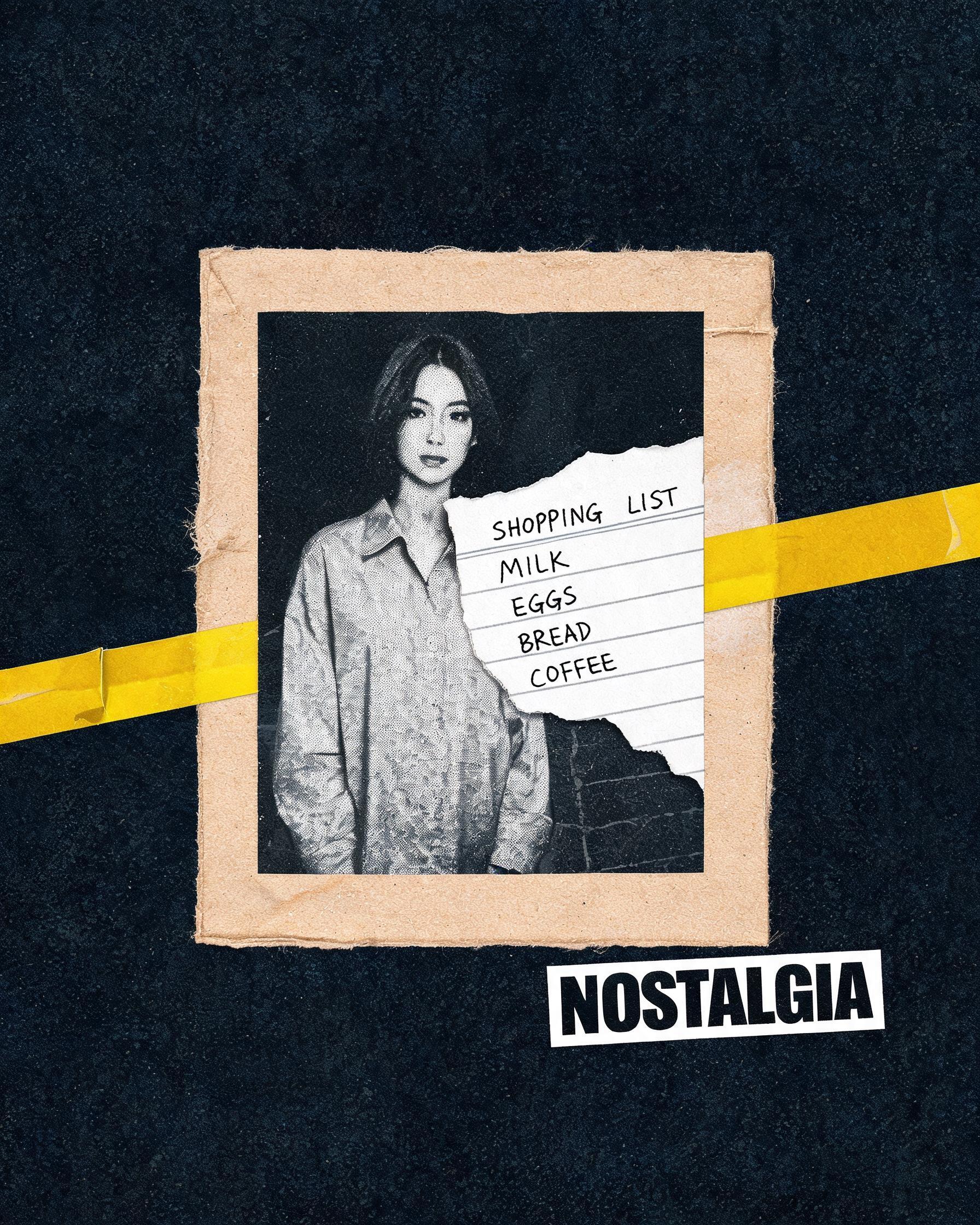
This workflow produces 2K resolution 4:5 vertical surreal minimalist collage posters with handcrafted zine design traits, including torn photo edges, paper frame details, and intentional negative space.

Asset
2K 4:5 vertical surreal collage exploration draft
Format
Model default · 2K
Model
Doubao Seedream 5.0 Lite

8 credits per image

Your references, identity direction, and approved creative context stay reusable inside the Project.

Sample generatedGenerated with · Doubao Seedream 5.0 LiteUpdated · Jul 29, 2026
Surreal Minimalist Zine Collage Poster Workflow generated example 1
2K · Model default
OUTPUT 01 / 02

REVIEW REQUIRED
Aspect Ratio Compliance · Torn Photo Detail

Generated output

Inspect the result before you put it to work.

Check the main subject, framing, material detail, and channel requirements at full size before handoff.

Surreal Minimalist Zine Collage Poster Workflow generated example 1
Generated result · inspect at full size before handoff

What this recipe creates

A repeatable 2k 4:5 vertical surreal collage exploration draft workflow.

This generation process creates exploration drafts of collage-style posters that lean into DIY zine aesthetics, with customizable background colors, subject imagery, layered paper ephemera, and custom headline text placed in the lower right corner. All outputs are 2K resolution at 4:5 aspect ratio.

  • 2K resolution 4:5 vertical collage poster draft
  • Textured torn edge detail on the central black and white photo
  • Rough paper frame surrounding the central photo
  • Layered paper ephemera visible behind the photo
  • Bold headline text placed in the lower right quadrant
  • Grainy photocopy texture across the full frame
DIY zine print assetsIndie gig promotional postersSocial media announcement graphics

Required inputs

  1. Solid dark base background color
  2. Subject reference for the torn black and white photo
  3. Clothing description for the photo subject
  4. Type of paper ephemera placed behind the photo

How it works

Review the workflow before you create.

3

Use each step as a review gate. If one gate fails, change that input before spending another generation.

01 / STEP

Set Base Composition and Background Color

Start by defining your solid dark background color, specify the 4:5 vertical aspect ratio, and confirm 2K output resolution before adding any layered elements. Lock the negative space allocation to 60% of the total frame to preserve the minimalist layout.

Quality check · No visible gradients or extra background textures appear, and empty negative space makes up at least 60% of the final frame
02 / STEP

Add Central Torn Photo and Paper Frame

Input your subject, clothing description, and specify the image inside the torn photo is strictly black and white. Add the rough textured paper frame border around the photo, and position the photo slightly off-center to follow asymmetric layout rules.

Quality check · Visible uneven torn edges appear around the full perimeter of the photo, and the paper frame has a rough unpolished surface texture
03 / STEP

Layer Ephemera and Final Graphic Elements

Specify your chosen paper ephemera type (letter, shopping list, bill) to place behind the central photo, add the full-width graphic element across the composition, and place your custom bold headline only in the small lower right section. Apply the grainy photocopy texture across the full frame.

Quality check · Ephemera details peek out from behind the torn photo edges, the headline sits fully within the lower right 15% of the frame, and grainy photocopy texture is visible across all layers

Recommended model and tested settings

Tested setup and quality gates.

Model
Doubao Seedream 5.0 Lite · doubao-seedream-5-0-lite-260128
Style
This workflow is calibrated for 2K 4:5 vertical output only. Do not request resolutions higher than 2K, as they will not render correctly.
Resolution
2K
Guidance
This workflow does not support multi-panel character sheets, 3D render outputs, or exact 100% accurate custom text generation.
Tested
Jul 29, 2026

Quality checklist

Aspect Ratio ComplianceFinal output is 4:5 vertical, no stretched or cropped distortion outside the 2K resolution bounds
Torn Photo DetailCentral black and white photo has uneven, rough torn edges with no clean straight cut lines
Negative Space AllocationAt least 60% of the total frame is uncluttered solid dark background, no overcrowded layered elements
Text PlacementBold headline text is contained fully within the small lower right section of the poster
Texture ConsistencyGrainy photocopy texture is applied evenly across all layers of the collage, no smooth untextured patches

Common failure modes

Know what to correct before the next run.

FAILURE / 01

Generated output has a 16:9 aspect ratio instead of 4:5

Override the default aspect ratio setting to 4:5 and re-run the generation, do not add extra keywords for wide format imagery

FAILURE / 02

Headline text is distorted, misspelled, or spread across the full frame

Remove all text generation prompts, generate the base collage without text, and add your custom headline manually in a raster editor after export

FAILURE / 03

Negative space is overcrowded with extra unrequested graphic elements

Remove all extra decorative keywords, explicitly state that 60% of the frame must be empty solid dark background, and re-generate

FAILURE / 04

Torn photo edges have clean straight cut lines instead of rough ripped edges

Add explicit reference to uneven, frayed, paper-tear edges with small loose paper fibers, and remove any keywords referencing clean cut or smooth edges

FAQ

Production notes.

All generated files are exploration drafts. You will need to manually refine text alignment, fix any anatomy errors, and adjust color values before using them for final commercial print runs.

All verified outputs from this workflow render at 4:5 vertical aspect ratio, with a maximum resolution of 2K as specified.

The workflow is calibrated to place the headline in the lower right small section. If you want to move it to another area, you will need to edit the output file manually in a raster graphics editor after generation.

You may see distorted text in the ephemera layers, misaligned torn edges, or unexpected extra elements in the negative space. These are typical for AI-generated collage drafts and can be removed in post processing.